Install Fulcrum AM Tools
Internal beta. Chrome Web Store version is in review. Until then, install the extension as an unpacked build.
Unzip and keep the folder somewhere stable
Unzip fulcrum-am-tools.zip. Move the resulting folder out of Downloads/ to somewhere you won't accidentally delete it (e.g. Documents/Fulcrum/). Chrome reads from this folder every time it starts; if you delete or move it, the extension stops working.
Open the extensions page and turn on Developer mode
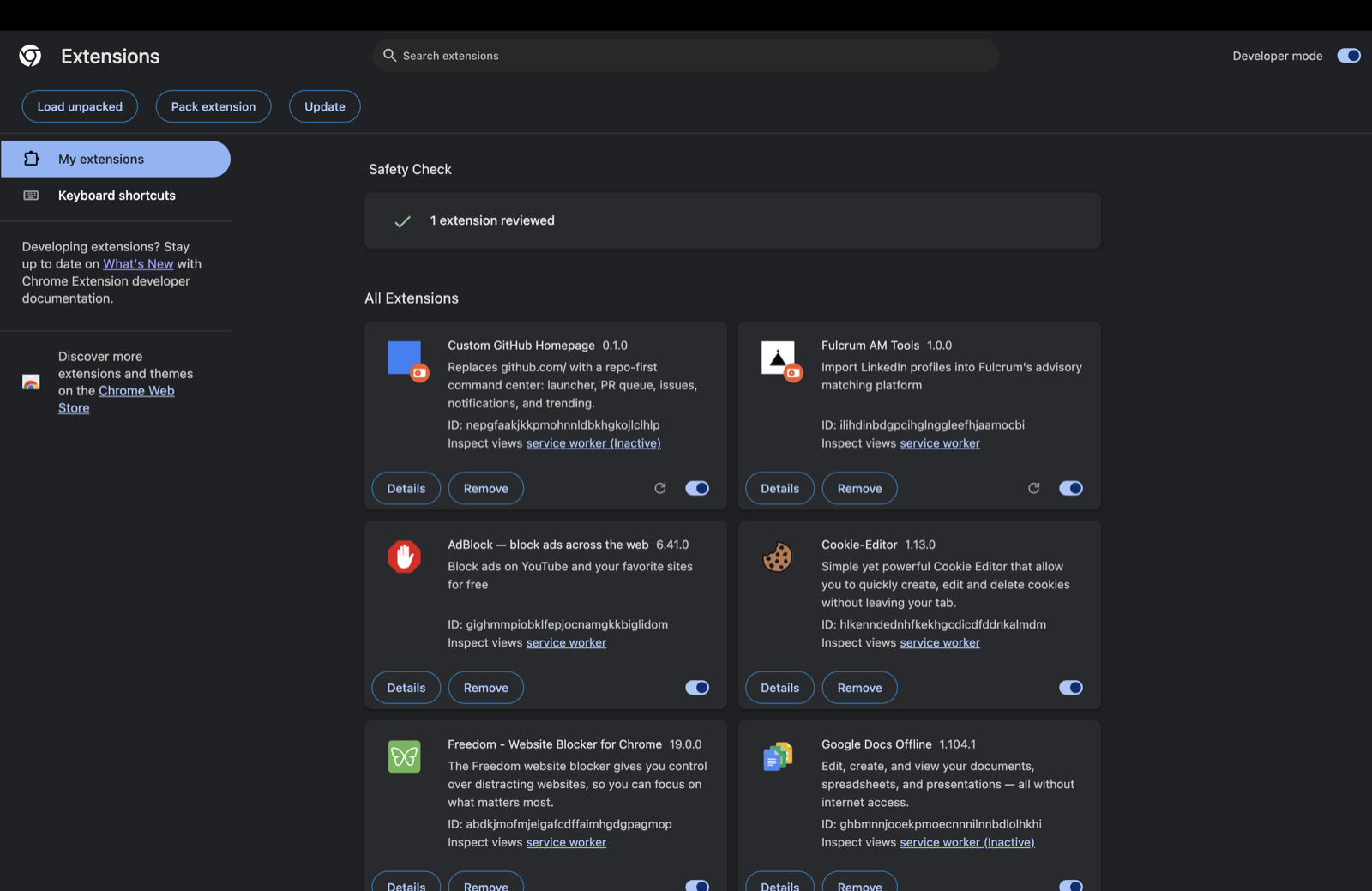
In Chrome, go to chrome://extensions. In the top-right corner, toggle Developer mode on. Three new buttons appear at the top left, including Load unpacked.
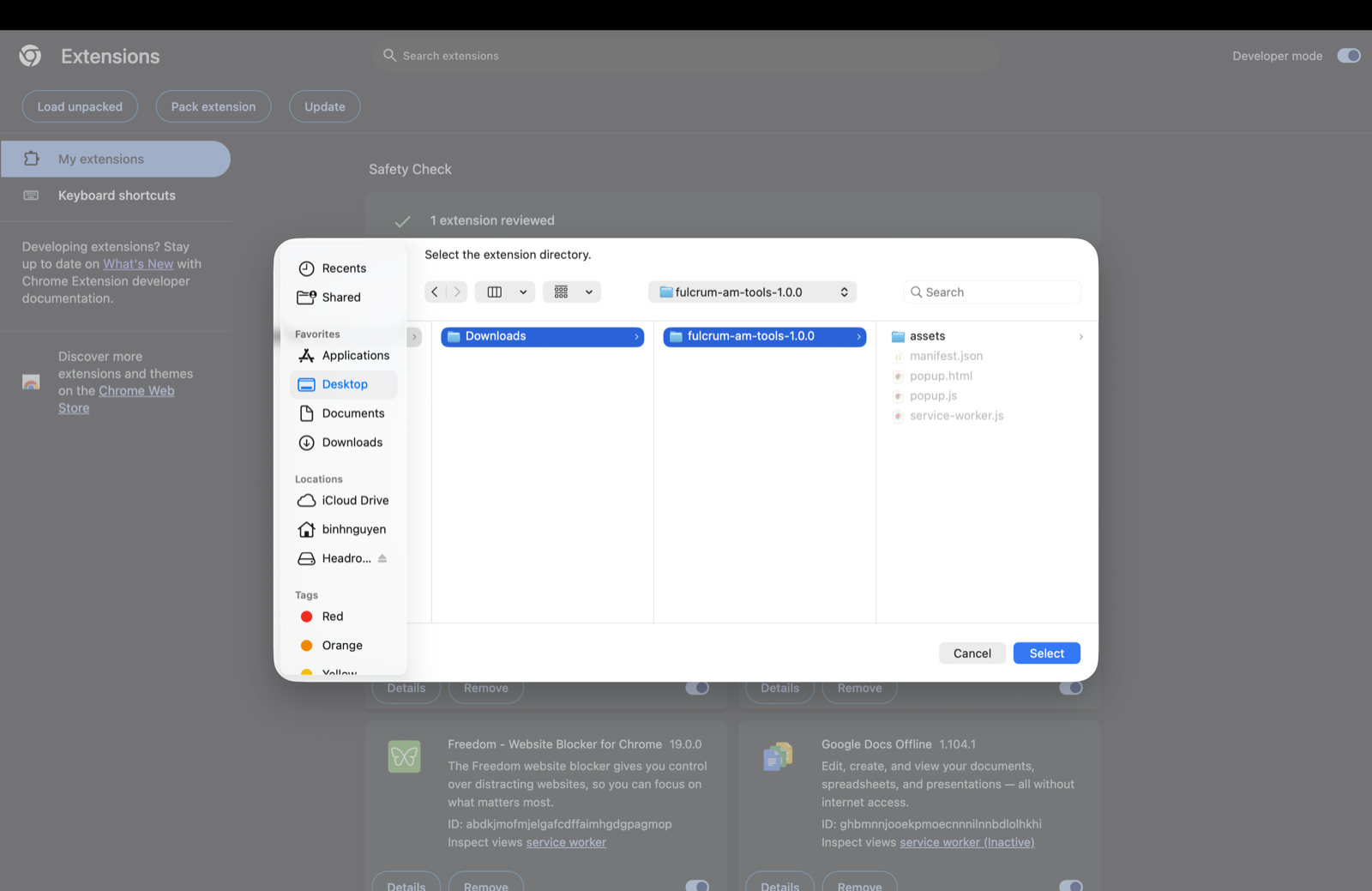
Click "Load unpacked" and pick the unzipped folder
Click Load unpacked. In the file picker, select the unzipped fulcrum-am-tools folder (the one that contains manifest.json) and confirm.
Fulcrum AM Tools should now appear in your extensions list. Pin it to the toolbar via the puzzle-piece icon so you can reach it quickly.
Connect with your Fulcrum API token
In Fulcrum, open Account → scroll to API Tokens → click Create Token. Copy the token. You won't see it again.
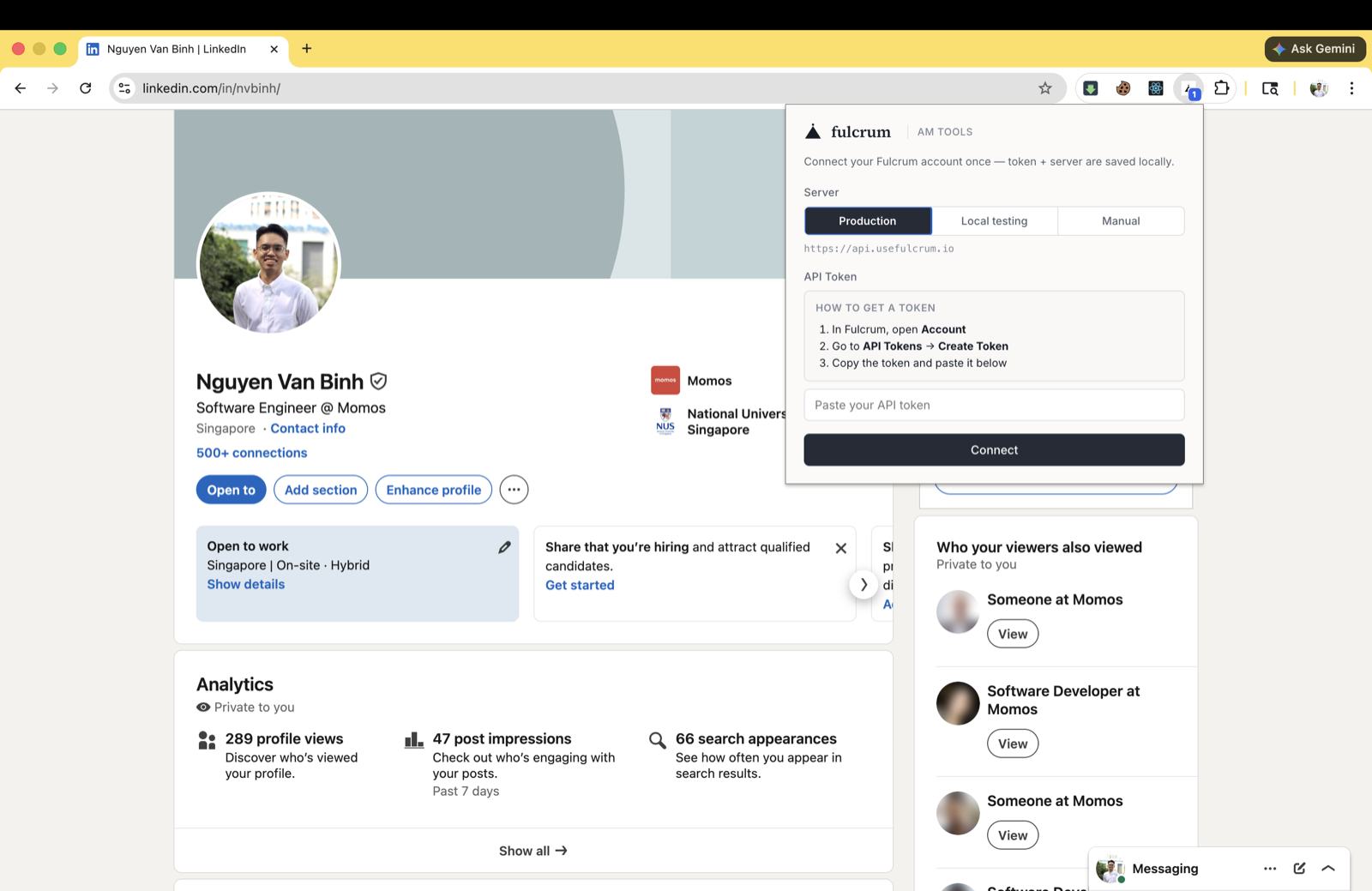
Click the Fulcrum icon in the Chrome toolbar. Leave the Server on Production, paste the token into API Token, and click Connect.
Use it
Go to any LinkedIn profile (URL starts with linkedin.com/in/). Click the Fulcrum icon. Pick a project from the searchable list. Click Import advisor. The advisor lands in your project pipeline with structured profile data attached.
Troubleshooting
- "Disable developer mode extensions" warning every time I restart Chrome
- Click Cancel, not Disable. This is Chrome being cautious about unpacked extensions. The warning goes away once we switch you to the Web Store version.
- The icon greys out / extension stopped working
- You probably moved or deleted the unzipped folder. Re-unzip the file into a stable location and load it again from
chrome://extensions. - "Failed to fetch" when I click Connect
- Either the server is unreachable or you typed/pasted the wrong URL. Make sure the Server segment is set to Production unless you've been told otherwise.
- "Invalid token" when I click Connect
- Tokens are shown in Fulcrum exactly once when you create them. If you copied it wrong, just delete it from Account → API Tokens and create a fresh one.
- I want to update to a new version
- Re-download from this page, unzip into the same folder, then click the circular-arrow reload icon on the extension's card on
chrome://extensions.
Questions? Email hello@usefulcrum.io. Privacy details are at /privacy/extension.